
In Microsoft Word 2010 and 2013, closing the application may cause a failure due to hardware graphics acceleration.
To avoid this, you should disable the graphics acceleration. Do the following:
- Open Word
- In the File menu, choose Options
- On the left pane of the Options screen, click on Advanced
- On the Advanced screen, scroll until reaching the Display section. If you use Word 2010, you should see the following:
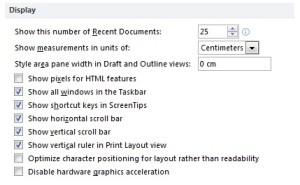
If you use Word 2013, you should see this:
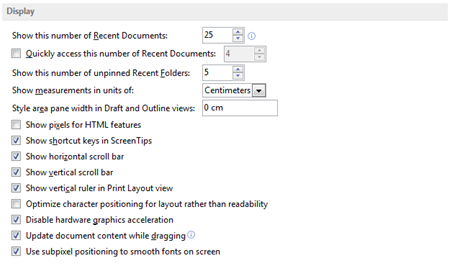
- Now, check the “Disable hardware graphics acceleration” option
- Click on the OK button to close the Options form, then leave Word
