
The “Document Management” screen looks as follows:
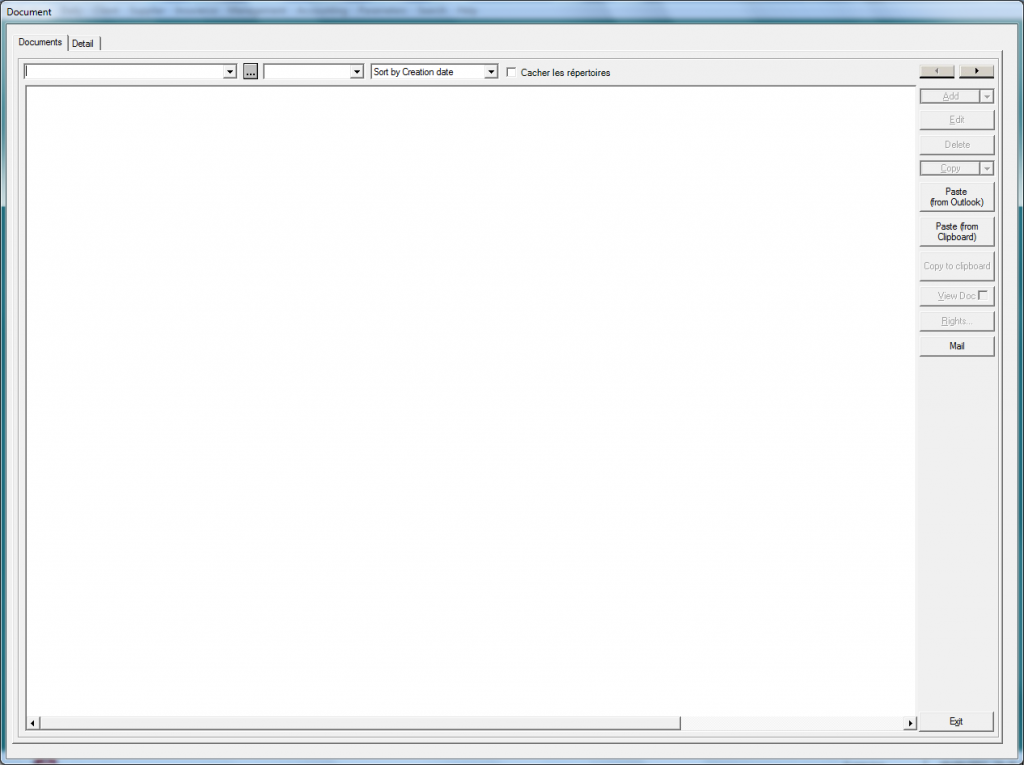
Consult documents of a Relationship
Documents Tab
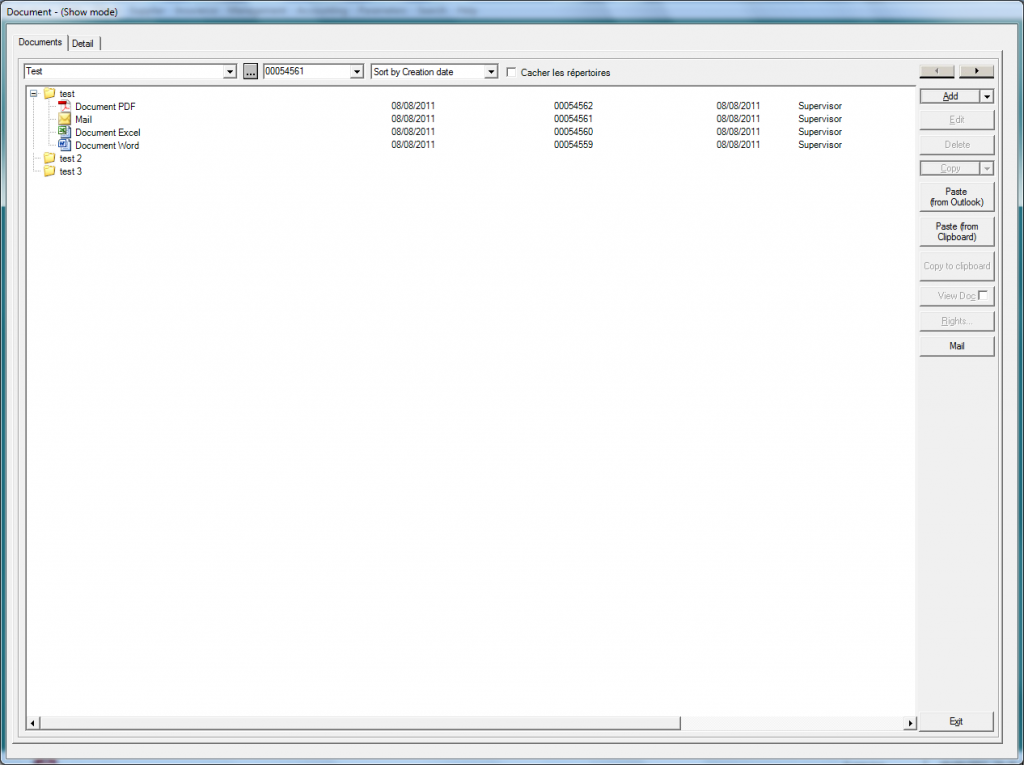
- Once on this screen, you simply select a relationship (this could be a Company, a Person, or an Employee) in the upper left combobox.
- It is possible to find a file with its number: Just type a file number in the combobox.
- Sorting the documents is possible, you can sort the documents according to the following: Name, Date Created, Date Modified, Date Reference
- You can hide folders to reveal only the documents, by checking or unchecking the checkbox “Hide the folders”
- After selecting a relationship, the list of documents contained in folders or not (here: Test, Test 2, Test 3) appears.
- Document Information appears in the following order: name of the file, creation date, file number, modified date, User
Details Tab
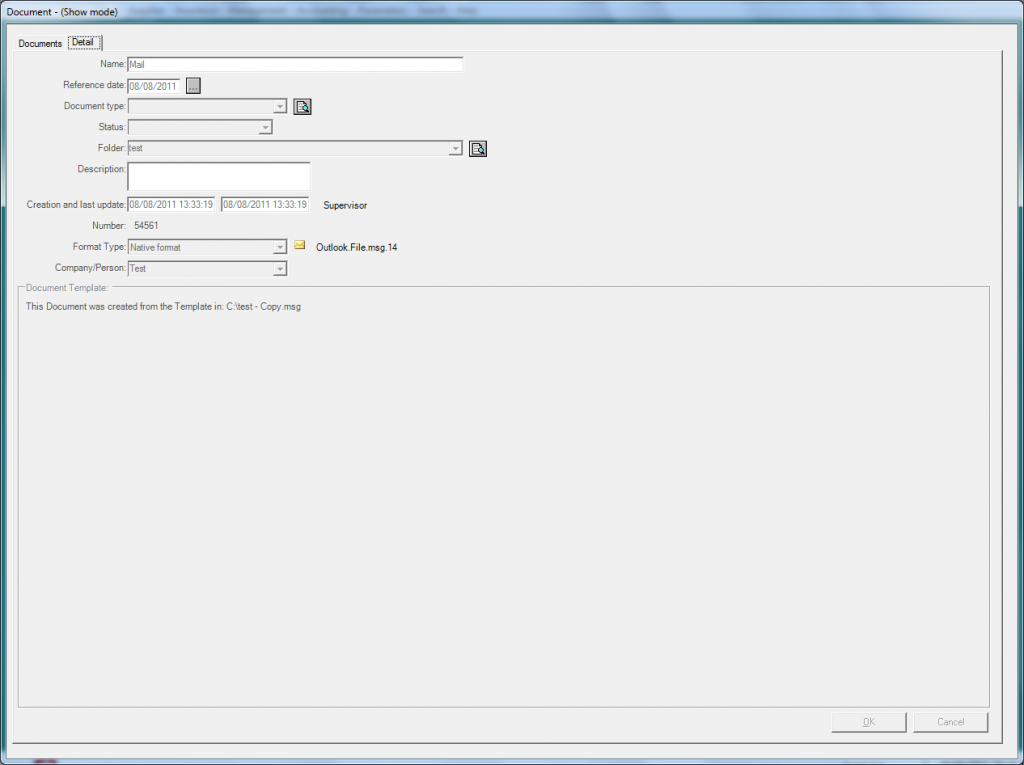
On this screen you can view all the document data.
Add Mode
Add a Document:
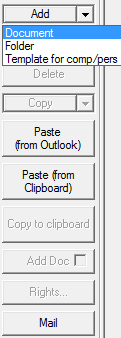
To add a document, you have to click on the Button “Add” or on the Combobox and select “Document” on the list.
The following screen appears :
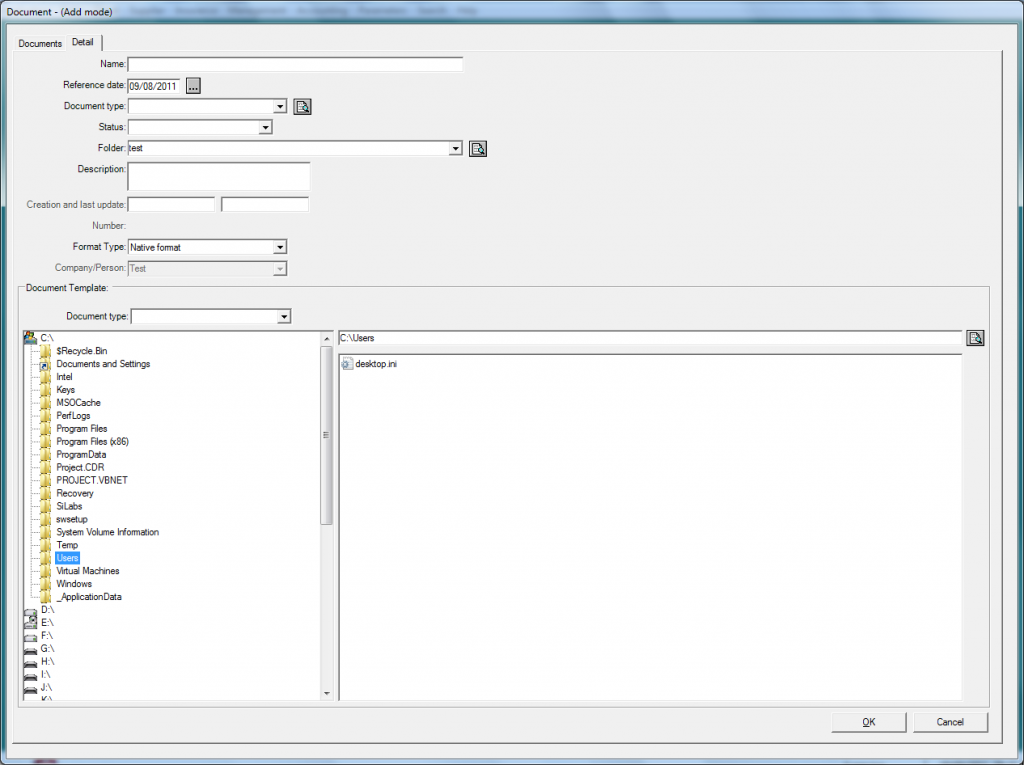
To add a document you have to enter the required fields and you can select a document template whit the explorer in the bottom on the screen.
Tips : You can press “F2” on the address bar of the explorer and the Name of the Template will be automatically copied in the Name field.
Add a Folder:
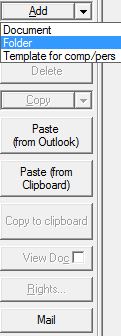
To add a Folder, on the Combobox and select “Folder” on the list.
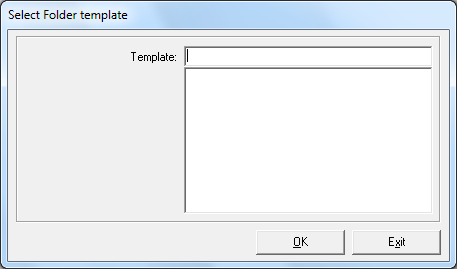
Now you have to select a “Folder template” to add your folder to the treeview.
For Example you add the “test” Folder Template.

Add Template For Comp/Pers :
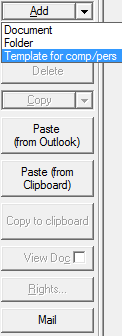
To add a Folder Template on multiple company/person , click on the Combobox and select “Template for comp/pers” on the list.
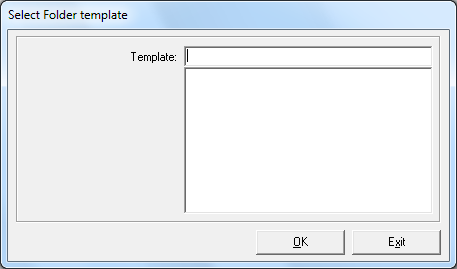
Now you have to select a “Folder template” to add.
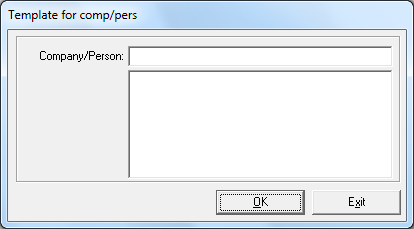
Now you have to choose the Company/Person that you want to add the “Folder Template”
Edit Mode
To Edit a Document, you have to select a document in the treeview and Click on the Edit Button
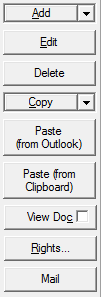 The following screen will appear :
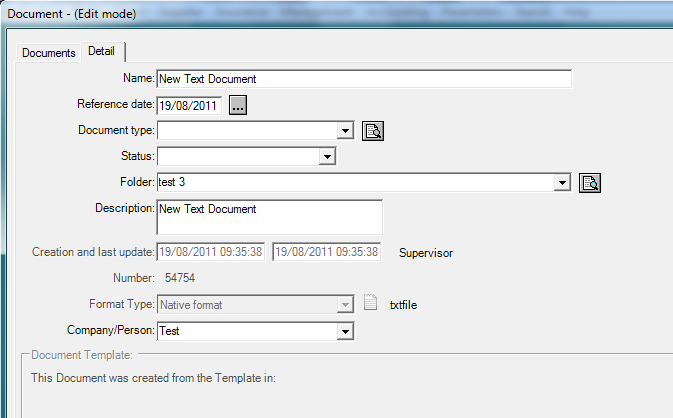 Now you can edit all the parameters that you need. To validate your change, clic on the button “Ok” at the bottom of screen.
Delete Mode
To Delete a Document you just have to click on the “Delete” button
A confirmation message will appear, to confirm the delation.
Copy Mode
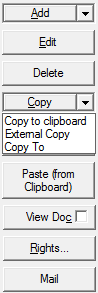
- The “Copy” button alow you to copy a document in the same folder in the same relation
- In the ComboxBox “Copy to clipboard” allow you to copy a document in the clipboard, after you can paste it where you want.
- In the ComboBox “External Copy” allow you to copy a document in a relation to an other
- In the ComboBox “Copy To” allow you (with a screen) to copy a document in multiple Company and/or Person.
Paste Mode
- The button “Paste (from Outlook) allow you to paste a document in a relation, once you have copy a mail in Outlook.
- The button “Paste (from Clipboard) allow you to paste a document in a relation, once you have copy it in the clipboard.
View Doc
To visualize a document you can Double Click or press “Enter” on a document on or on the bouton “View Doc”

If your document contains query on the document, you can replace the value of the query automaticaly. You just have to check the checkbox on the “ViewDoc” Button.
Rights
To manage the Rights of a folder you have to click to the “Rights” Button
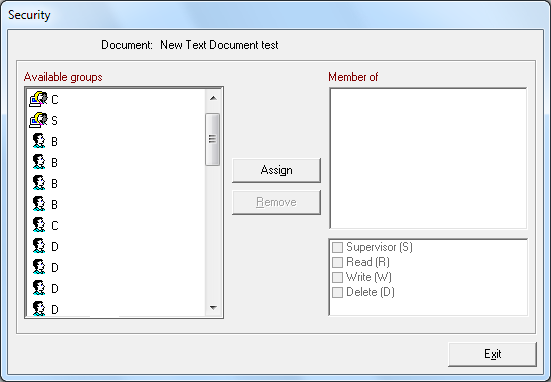 You can assign group or user to a document.
You can send a document to Outlook whit the button “Mail”
The following screen will appear after the click on the button.
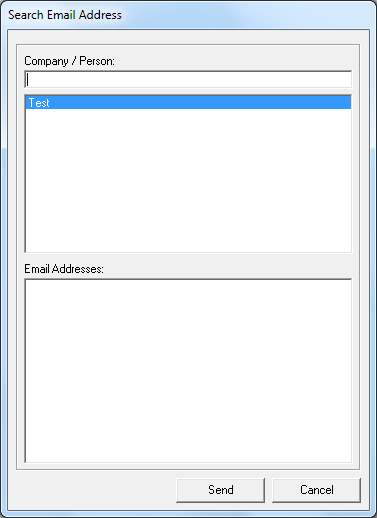
You can choose your company / person you need and after all the email adresses will apper in the list below.
Click to “Send” to generate a Draft email in Outlook whit the selected document in attachement and the selected email address.
Searching a Document
You can found a document whit his number.
For Example you search the document number :00054754
You can type the number in the ComboBox and press “Enter”

Treeview / Right Click
On the main screen, if you make a right click when a document is selected a MenuStrip appear :
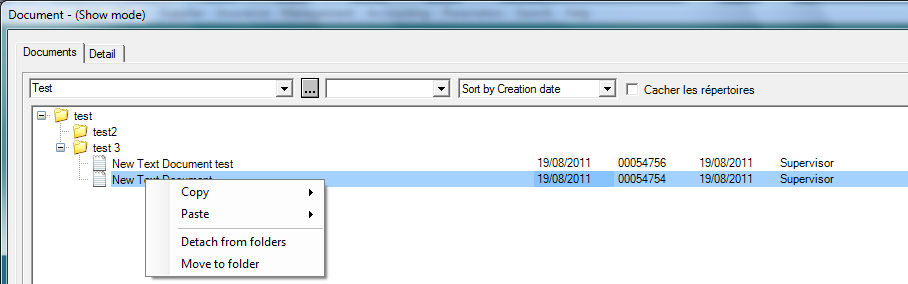
- You can “Copy” the document (“Copy”,”External Copy”,”Copy To”,”Copy To Clipboard”) See the “Copy Mode” Chapter to know how Copy works.
- You can “Paste” the document (“From Outlook”, “From Clipboard”) See the “Paste Mode” Chapter to know how Paste works.
- You can “Detach from folders” the document. If you detach the document from a folder, the document will appear in the first level on the treeview.
- You can “Move to folder” a document. If you want to change a document to an other folder you can click on “Move to folder” and a screen whit the document folder will appear :
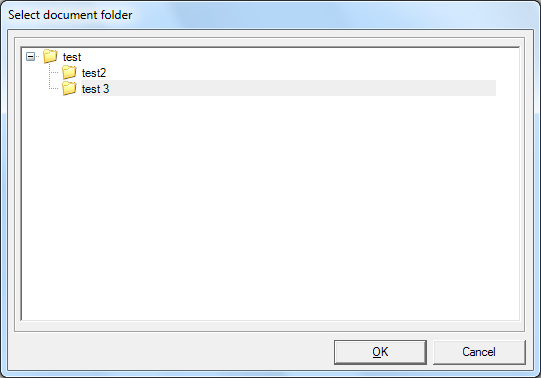
You just have to choose a folder and click on the button “Ok” and the document will be moved in the selected folder.