
Follow this tutorial if you want to make a backup of a DeMaSy database(s) with specific options :
- Follow the Simple Backup Tutorial and stop before you reach the Click on the backup button stage
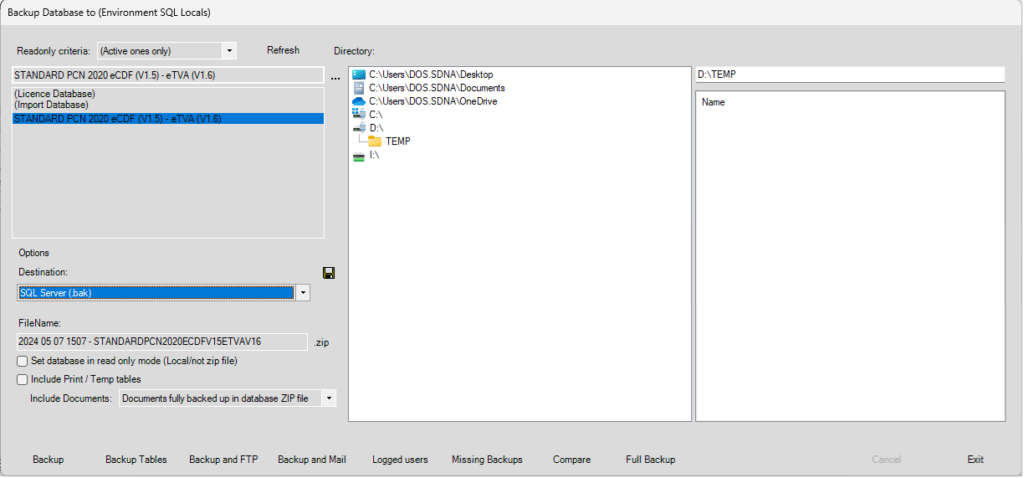
- You can now set the options you want:
- The Destination option allows you to choose the type of backup:
- MS Access (.mdb) is the old way and will be slower than SQL Server (.bak) type but it will not require any prior configuration in order to work
- On the other hand SQL Server (.bak) type is faster but you will have to provide the System Administrator (SA) credentials in INIEditor / Security (Network) / SQL Server Settings to make it work
- The FileName option allows you to set manually the name of the backup file
- The Set database in read only mode (Local/not zip file) option allows you to prevent those who will restore it from modifying the data
- The Include Print / Temp tables option allows you to include in the backup different data that are generally used to generate the DeMaSy reports
- The Include Documents option have multiple values:
- Documents excluded value will not include in the backup the documents related to the database(s)
- Documents fully backed up in database ZIP file value will include all the documents related to the database(s) in the ZIP archive. So when you will restore the backup you can choose the option Include Documents: Documents included in database ZIP file
- Documents incrementally backed up in separate ZIP file value will save the related documents to the database(s) outside the ZIP archive. So when you will restore the backup you can choose the option Include Documents: Documents included in a separate ZIP file
- The Encryption Type option allows you to encrypt the data or not, this option have multiple values:
- Normal value will not encrypt the data
- Encrypt sensitive data with 256 Unicode value will encrypt the data with the 256 Unicode algorithm. You will need to provide a key in order that the encryption works
- Replace sensitive data with Id value allows you to anonymize the backup, all the text data will be replaced by the SQL identifier numbers
- The Destination option allows you to choose the type of backup:
- In addition of the Backup button, you also have different button actions:
- The Backup Tables button allows you to choose the tables that will be backed up. Once you have clicked a new window will ask you the selected tables:
- The “+” button allows you to select all tables
- The “-” button let you unselect all the tables
- The Backup and FTP button allows you to send your backup to a FTP server
- The Backup and Mail button allows you to send your backup by e-mail
- The Logged Users button allows you to see the list of users connected to the database
- The Missing Backups button will show you all the databases that need to be backed up
- The Full Backup button will make a complete backup of the DeMaSy and Licence databases with all the related INI files
- The Backup Tables button allows you to choose the tables that will be backed up. Once you have clicked a new window will ask you the selected tables:
Special Scenario: Large Tables
Our system is optimized to handle tables with a substantial number of records efficiently. However, when dealing with tables containing hundreds of thousands of records or more, we employ a backup method based on ranges:
- By default, the range is set to 100,000 records, but users have the flexibility to adjust this threshold by modifying the ‘BulkThreshold’ entry in the DeMaSy INI file
- This approach ensures that backups can accommodate any amount of data seamlessly, without impacting the user experience
- However, it’s important to note that this backup method applies only to tables with a field id